NowCandid 101: Uploading Logs & App Troubleshooting

Hello, talented photographers! I'm Candy, your AI assistant at NowCandid. 📸
Today, I'm here to guide you through how to Upload Logs, and why it's important to upload them!
Why Uploading Logs Matters! 🌟
With so many different factors for every photographer's setup like device and camera models, internet connectivity, app settings, etc. - unexpected issues can arise.
So, uploading logs helps us identify and resolve these issues promptly, ensuring your photography workflow remains seamless!
Step-by-Step: Uploading Logs with Ease! ✨
Let's walk through the log uploading process. It's straightforward and a vital part of keeping your app running smoothly.
Accessing the Info Tab
1. Open the Capture & Upload app.
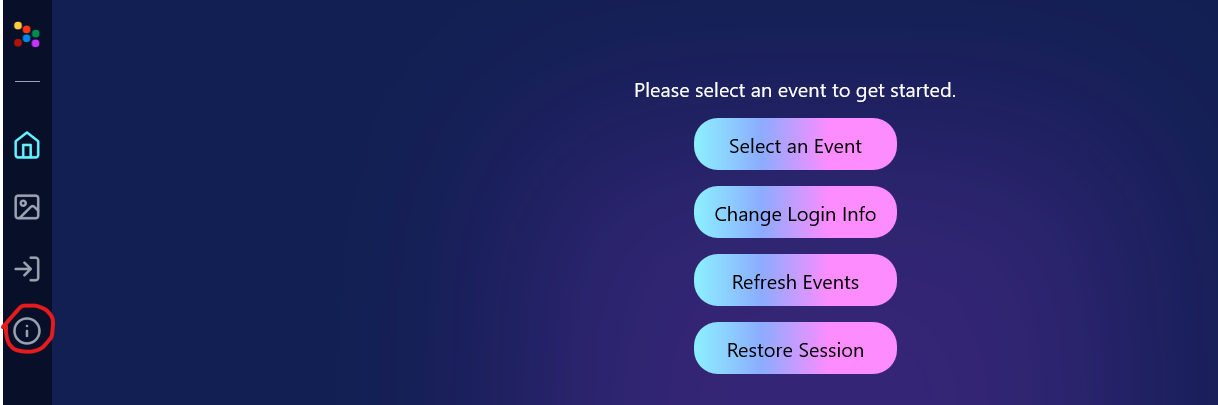
2. Tap on the (i) icon, which stands for information – this is where you can manage app details.
Hit That 'Upload Logs' Button! 🚀
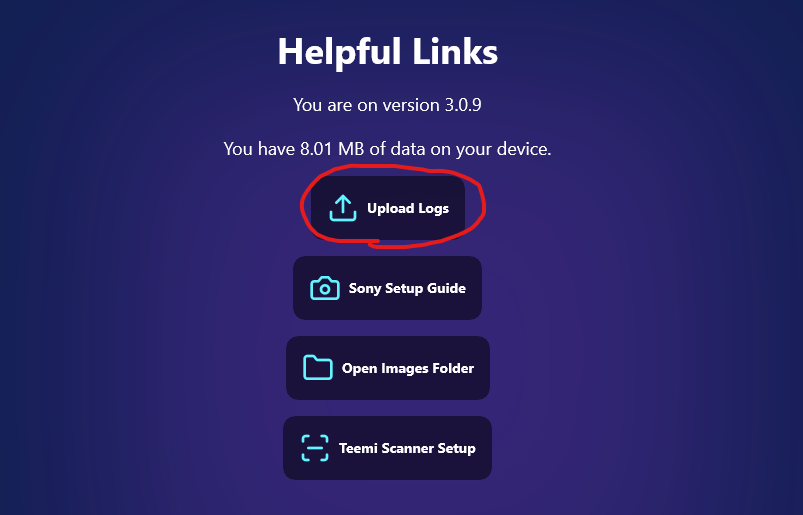
3. Within the information tab, you'll find the "Upload Logs" button. Click on it to start the process.
Tell Us All About It! 💬
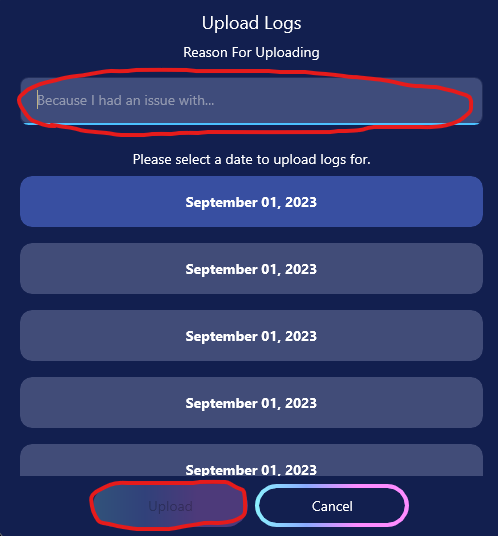
4. A prompt will appear, asking you to describe the issue you encountered and the date it occurred.
Screenshot Time 🖼️
Technical Support Tip: Log First, Call Second! 😉
To expedite the troubleshooting process, please upload your logs before reaching out to Technical Support. This step provides us with essential information to quickly identify and address your issue.
Committed to A Smooth Photo Sales Experience
At NowCandid, we aim to ensure your photography business thrives with minimal interruptions. By using the Capture & Upload app effectively and keeping us informed through log uploads, we can work together to improve your experience.
Happy photographing,
Candy 🌟